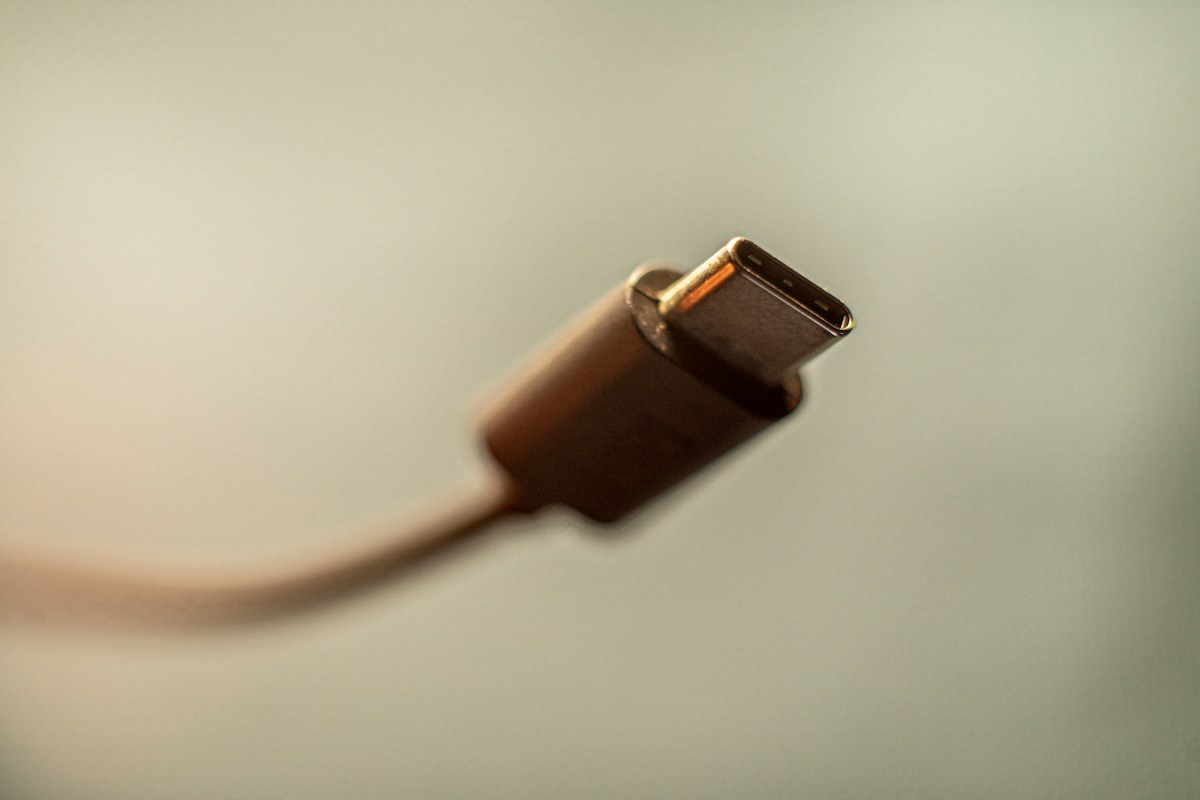
Start with the laptop's official charging information. Identify the supported charging connection and the recommended adapter for the exact model. A USB-C port does not automatically mean that every USB-C power supply can run and charge the computer in the way you expect.
Apple's Mac charging documentation, for example, identifies recommended adapter and cable combinations by model. Use that kind of device-specific information as your baseline. A shopping result headed laptop charger is not a substitute for the requirements of the machine on your desk.
Read output, not just the largest number
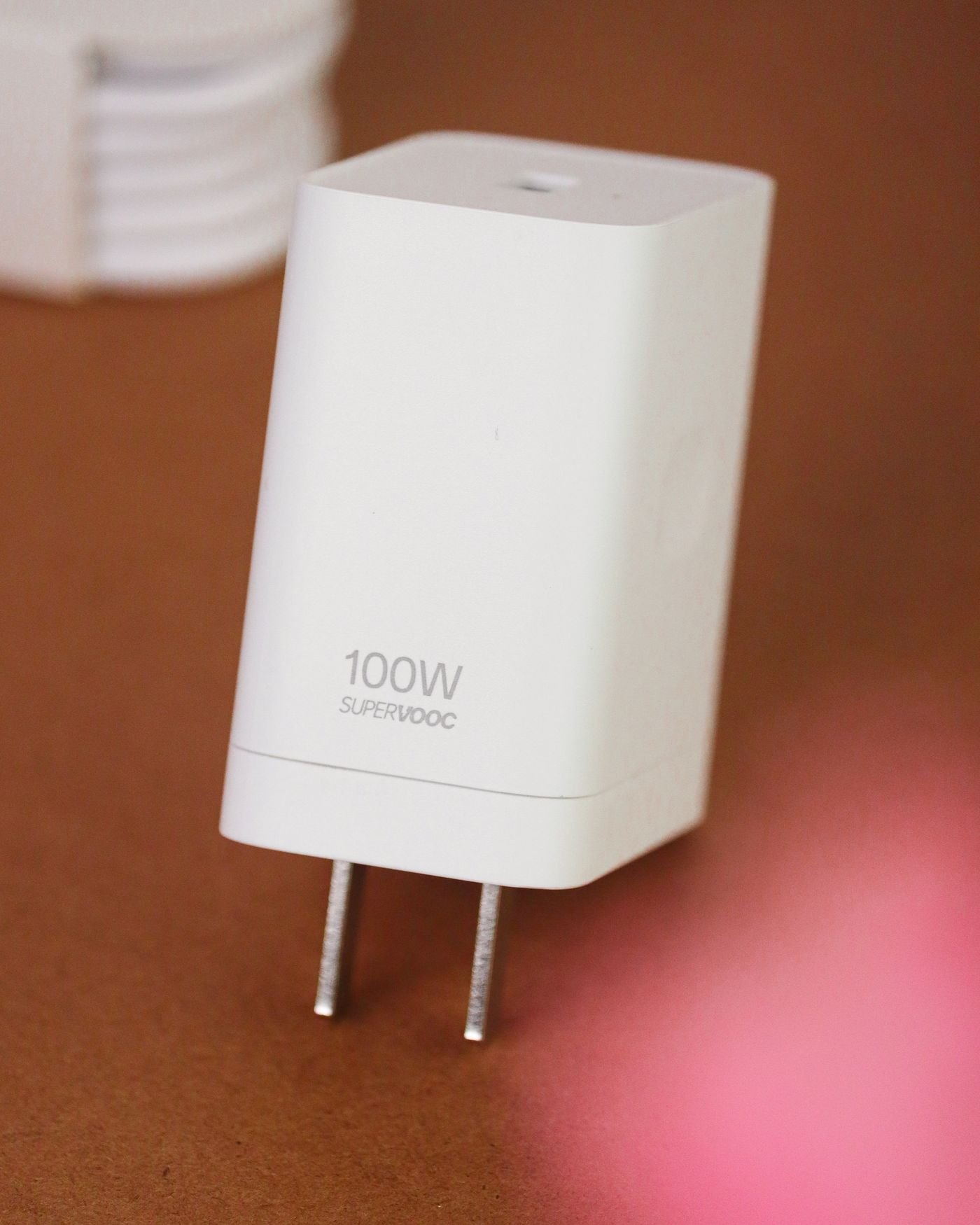
Check the charger's output information for the port you will use. If it has several ports, read the allocation when other devices are connected. A total power figure may describe the adapter as a whole rather than the amount available to your laptop in every arrangement.
Compare the supported charging standard and output with the laptop documentation. Do not infer compatibility merely because a connector fits or because the charger advertises more watts than another product. Keep the exact model references available if you ask the manufacturer to confirm the match.
Include the cable in the check
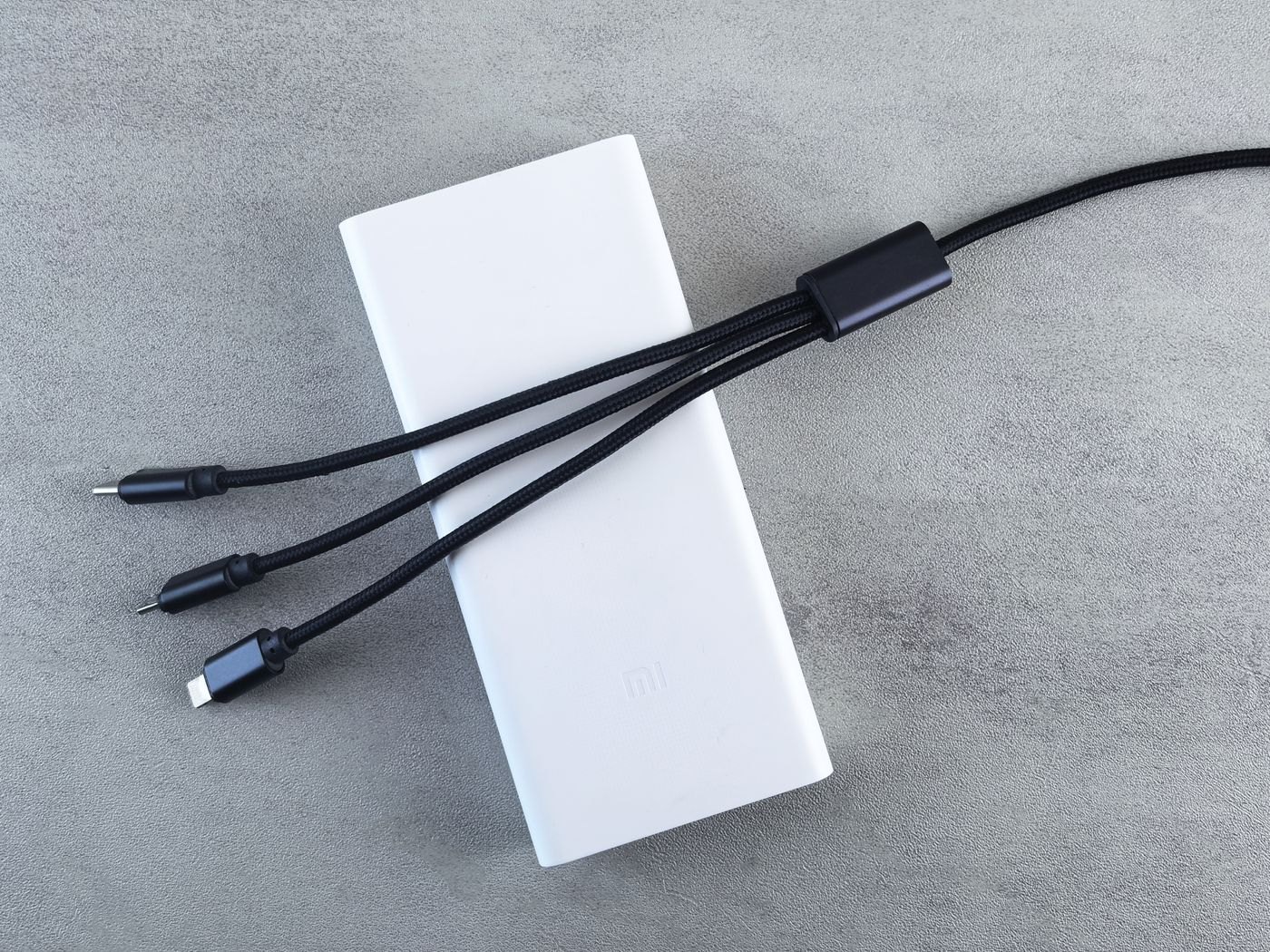
Use a cable specified for the intended charging requirement. A cable's connector type and power capability are separate details. The cable supplied with a small accessory may not be the right choice for a laptop even if it plugs into both ends.
Look at the physical route too. The lead should reach without pulling the laptop towards the outlet, and the plug should seat without interference from a case or crowded port arrangement. Avoid adding an extension or adapter simply to make an unsuitable cable reach.
Test the working arrangement
Try the charger with the laptop doing the task you normally perform, following the manufacturer's guidance. A battery icon while the computer is asleep does not tell you everything about the arrangement under use. Check any charging status information the platform provides and investigate an unexpected warning through the maker's support instructions.
For travel, repeat the check with the other devices you plan to connect to the same charger. If charging behaviour changes when a phone is added, consult the port-allocation chart rather than assuming the laptop or battery has failed.
Keep the original or another verified suitable adapter available while evaluating a replacement. That gives you a known reference for troubleshooting. Choose the replacement for the complete laptop, cable and port combination, not for an isolated number printed in large type on the box.
Compare direct charging with a docked desk
A laptop connected through a dock has another power specification to consider. The adapter may supply the dock, while the dock documents a different amount available to the host computer. Read both descriptions and identify whether the quoted figure is input to the accessory or delivery to the laptop. Do not subtract an arbitrary allowance and treat the result as a confirmed output.
Build a simple record for each proposed arrangement: laptop requirement, charger port, cable, intermediary device and documented host output. A blank field identifies the question to ask. This is especially useful when one accessory advertises a large input figure prominently but describes its computer-facing output elsewhere.
Test the direct arrangement and the docked arrangement using comparable laptop activity. If the direct connection behaves as expected and the docked one does not, the result narrows the investigation without proving which component is defective. Check the dock's included cable and supported host port, then ask its maker about the complete model combination. Keep the original power supply available until the new arrangement is verified for the work you actually do.