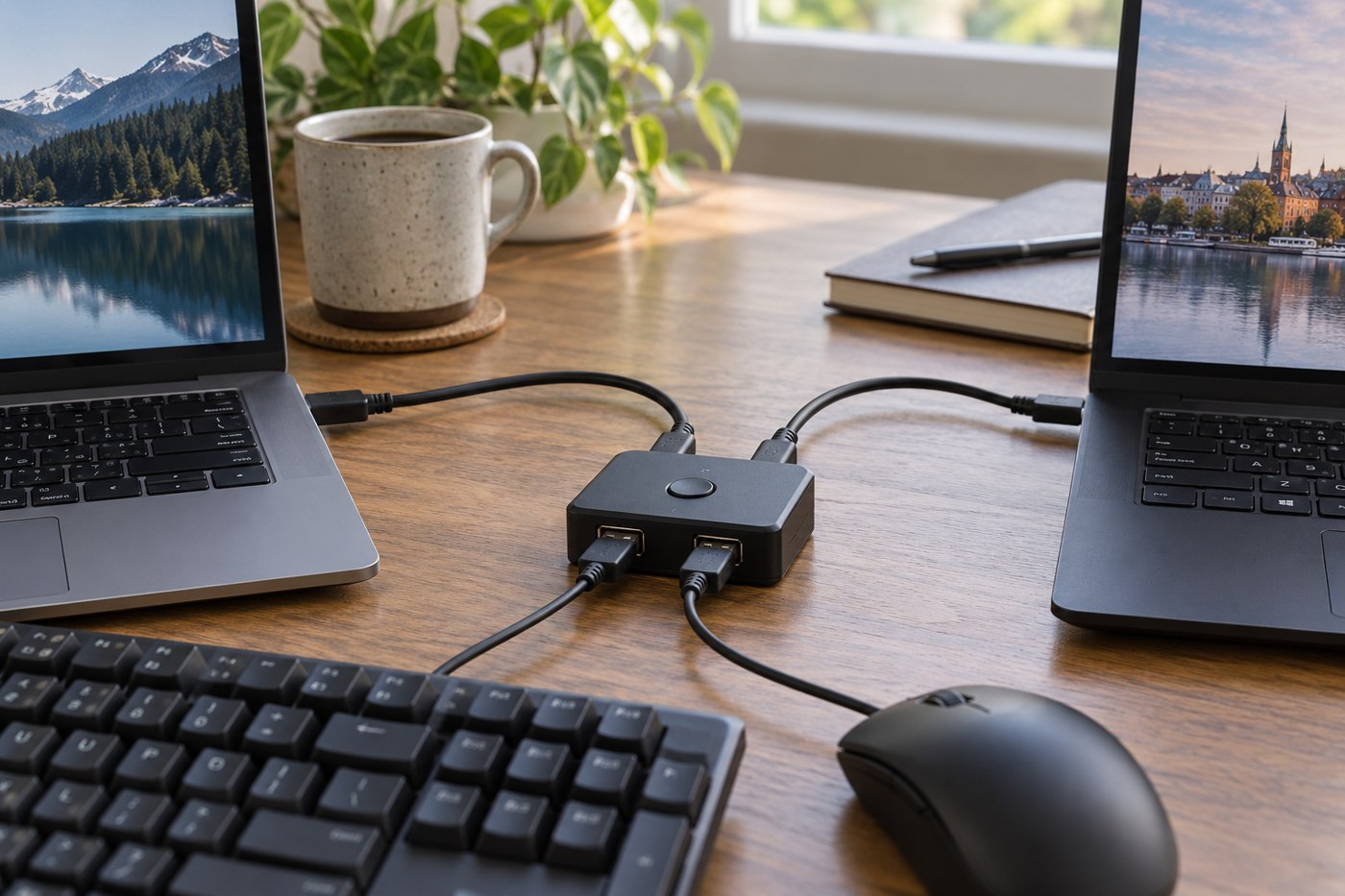
A USB switch can let two computers take turns using selected peripherals. It is useful when you want to avoid repeatedly moving plugs, but it should be chosen for the devices attached to it. A keyboard-and-mouse setup asks less of a switch than a webcam, audio interface and external drive operating together.
Make two lists: the computers that will act as hosts and the peripherals that will move between them. Check the switch's supported host connections and use the supplied or specified cables. Do not improvise a direct computer-to-computer cable connection as a substitute for suitable switching hardware.
The downstream sockets do not tell the whole story
Read the documented data rate and supported device types. Verify whether the switch needs an external supply and what that supply powers. A product that works with a basic mouse is not thereby verified for a device with different power or bandwidth requirements.
If an accessory needs its own driver, check that it is installed and supported on both computers. When one machine belongs to an employer, ask about permitted peripherals and software before introducing the switch. The switch cannot remove a host's software or access restrictions.
A focused acceptance test
For a keyboard, mouse and webcam shared between two laptops, begin with only the keyboard and mouse attached. Type in a test document on each host and confirm the indicator matches the active computer. Add the webcam, select it in a local camera application on the first host, then close that application before switching and testing the second. This separates basic host switching from camera and application behaviour.
Next try the normal sequence after both laptops have slept. Record whether a device returns automatically or needs an application selection. If the webcam works directly on each laptop but fails through the switch, give the switch manufacturer those exact results along with the camera model and cable arrangement. That is more actionable than replacing the camera on the assumption that it is faulty.
A shared microphone adds another state to check: verify which computer receives the voice after each switch. Do not test this in an ongoing meeting where a mistaken destination could disclose speech. Use short local recordings instead.
These tests also reveal whether the shared arrangement is worth the complexity. If one accessory frequently needs manual recovery, keeping that device directly connected and sharing only the keyboard and mouse may better suit the desk.
Decide what should never switch casually
External storage requires particular care because changing hosts can interrupt access. Finish transfers and follow the appropriate eject procedure before switching. If you cannot reliably make that part of the routine, leave the drive connected directly to its intended computer and share only lower-consequence peripherals.
Similarly, test an audio or video device during the application workflow you use. Some programs may need the input reselected after it disappears and returns. A physical button that changes the connection instantly does not guarantee an application is ready at the same instant.
Make switching unambiguous
Place the control where it is reachable without moving the laptop, and keep the active-host indicator visible. Label the host cables if the unit uses numbers rather than names. Test both directions with a plain text document before trusting the arrangement during a meeting.
Try a restart and a sleep-wake cycle on each computer, then repeat the switch. Note any predictable delay and check whether a held key or active recording causes a problem. Choose based on that complete behaviour, not only the number of ports visible in the listing photograph.