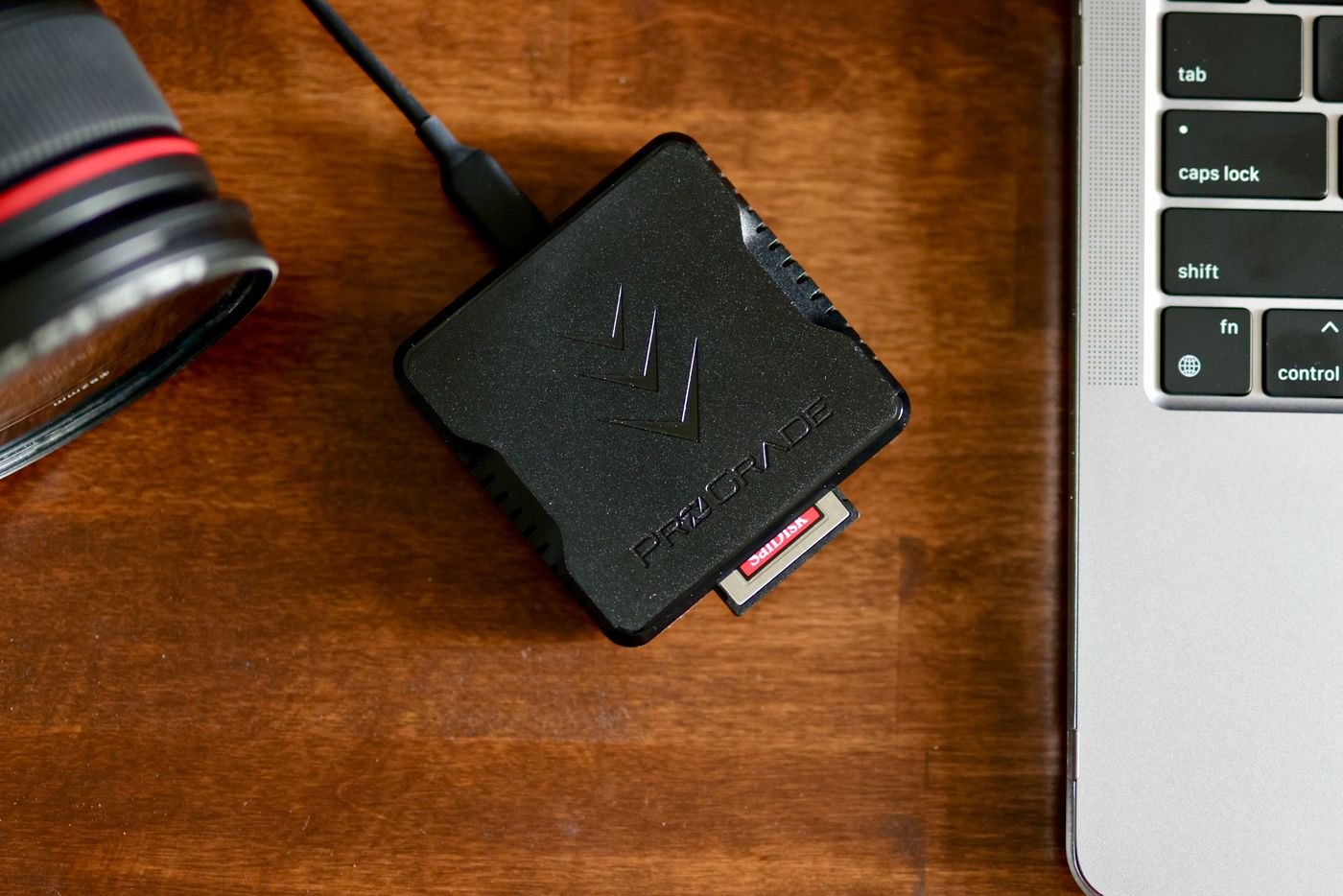
Choose one location for newly imported photographs and one location for the backup. Name the drives clearly enough that you can distinguish them in a file picker. A folder called Backup on the same physical drive as the originals does not protect against losing that drive. The two locations should reflect two separate roles, not just two convenient labels.
An easy starting routine is to import photographs into a dated event folder, check that the import opened correctly, then update a second copy. Keep the camera card intact until that process has finished. If you use a photo-management application, check whether its catalogue, edits and original files live together or in separate locations. Copying only the visible exported pictures may omit the work needed to continue editing.
Decide what the backup tool is doing
There are useful differences between copying current folders, synchronizing two locations and retaining earlier versions. Read the selected tool's description of deletions and overwrite behaviour. A process that faithfully repeats a mistaken deletion may not provide the history you expected. Before relying on an automated job, learn how it reports exclusions and failures.
On a Mac, Apple's Time Machine documentation describes automatic backups to external storage and the recovery of files. Other systems and applications have their own supported workflows. Use the instructions for your actual setup, rather than combining menu steps from several unrelated tools.
Write down a trigger you can remember. For example, update the backup after each camera import and before clearing any source card. A vague intention to copy things occasionally is harder to maintain than an action attached to an existing task. If the drive stays disconnected between sessions, put its cable where it will remind you of the job without creating a trip hazard.
Test recovery with an ordinary photograph
Pick a small image and recover it into a temporary folder outside the live library. Open the recovered file and confirm that it is the photograph you expected. If edited versions or catalogue files matter, test those too. Make a note of the date and the steps required; another household member should not need to guess which application opens the backup.
Review the routine when you change phones, cameras or editing applications. A new device can introduce a second import location that your original job does not include. The useful question is whether every important original has a recoverable copy, not whether a drive continues to flash an activity light.
Handle a missed backup without clearing the evidence
Suppose you import two cards on Sunday but the backup drive is at another location. Leave the imported folders and cards clearly marked as awaiting backup, then set a specific follow-up task. Do not clear the cards merely because you normally do so at the end of an import. The exception needs a visible state that survives beyond your memory of that evening.
When the drive returns, check the source folders included in the job before starting it. After completion, confirm the two new event folders appear in the recovery view. This is more informative than assuming the software caught up simply because it ran for a long time. Mark the exception resolved only after the relevant material has been checked.
Plan for account and application access as well as the files. If a backup is encrypted, store recovery information securely where it will remain available if the computer fails. If a catalogue requires particular software, record its name and the location of its own backup. A family member should be able to distinguish the file copy from the instructions needed to make sense of it.
An additional copy kept separately can address risks that two devices on the same desk share. Choose an arrangement you can maintain and check, rather than adding a third destination that never receives new photographs. Record the last successful update for each destination so their different ages remain obvious.