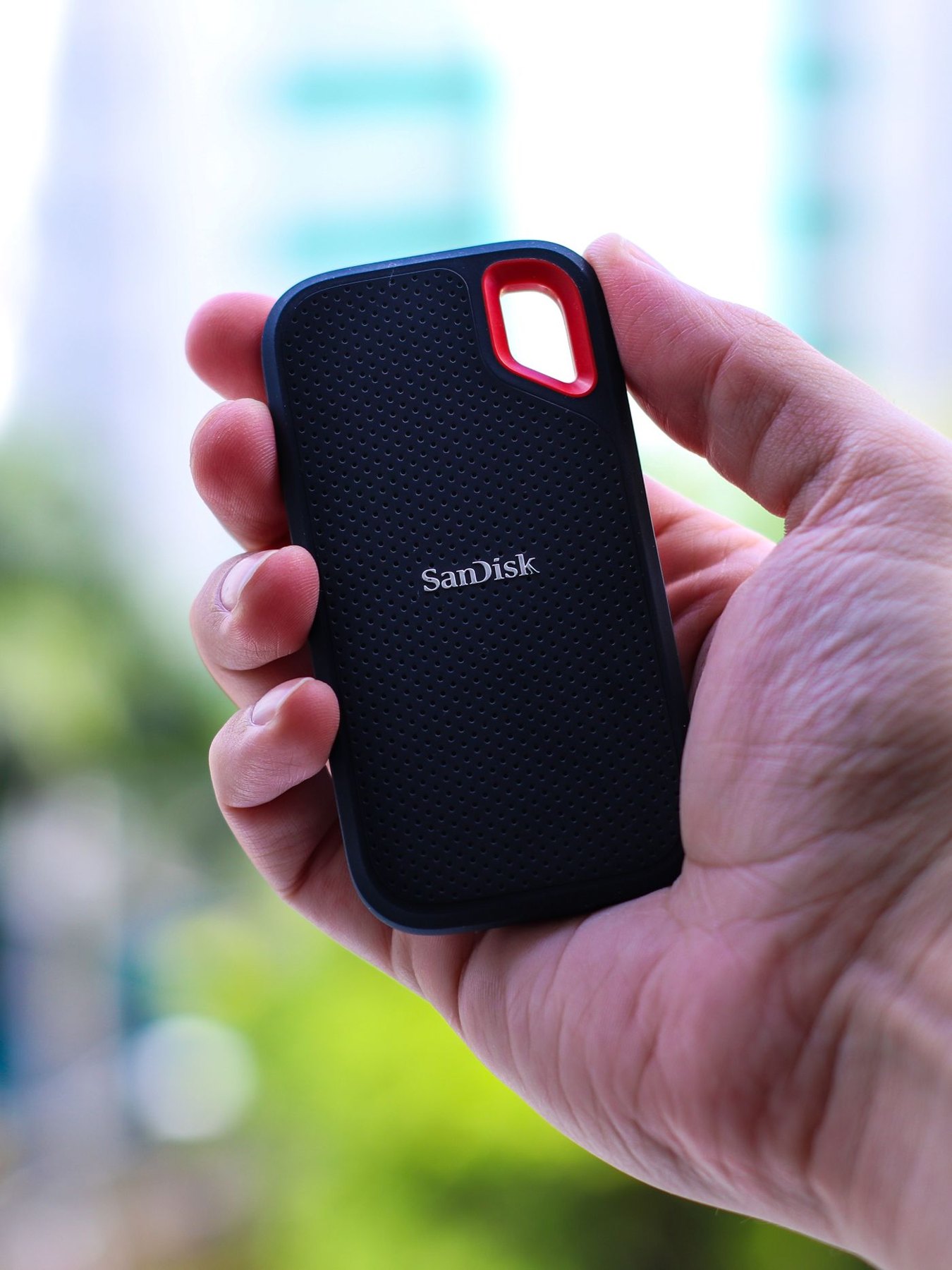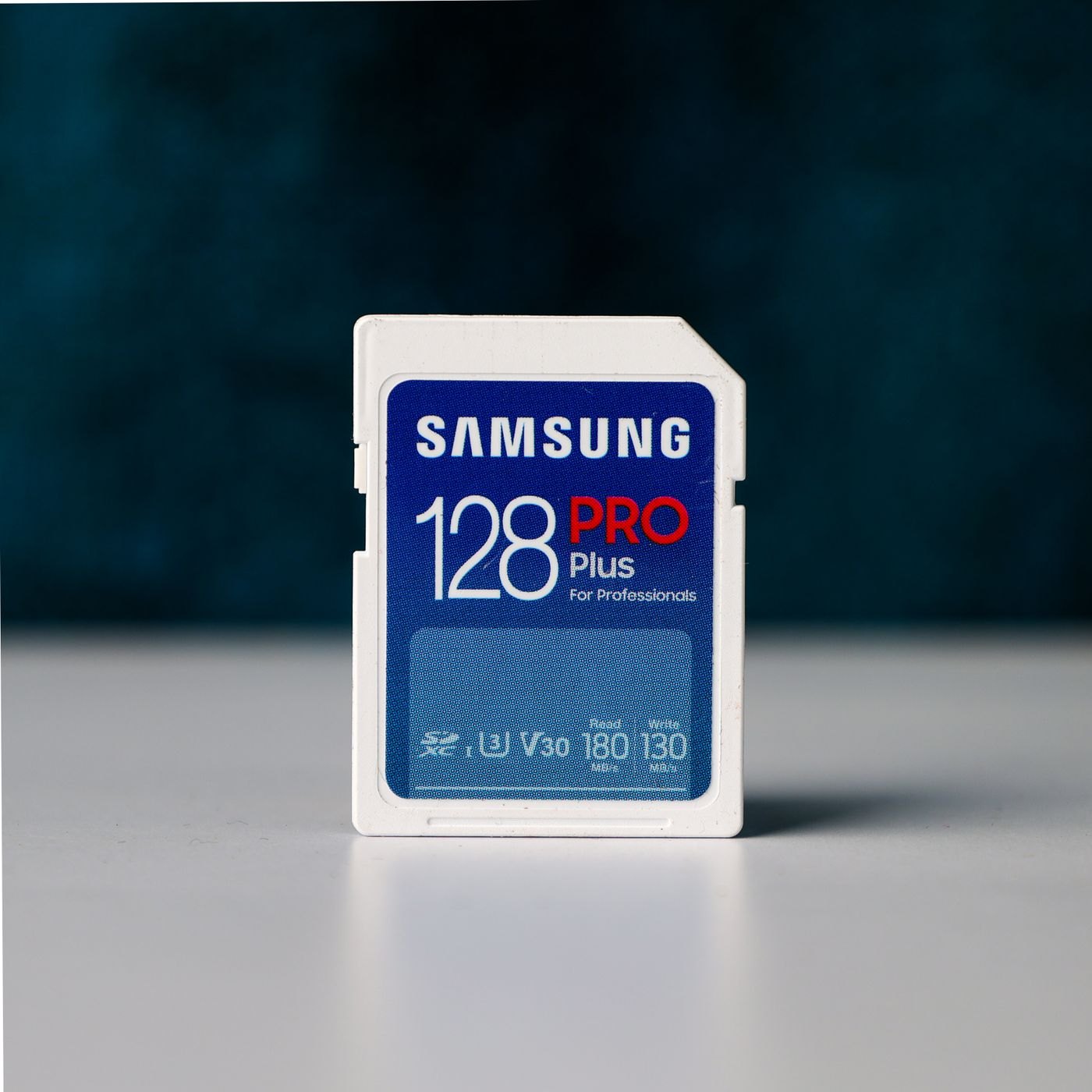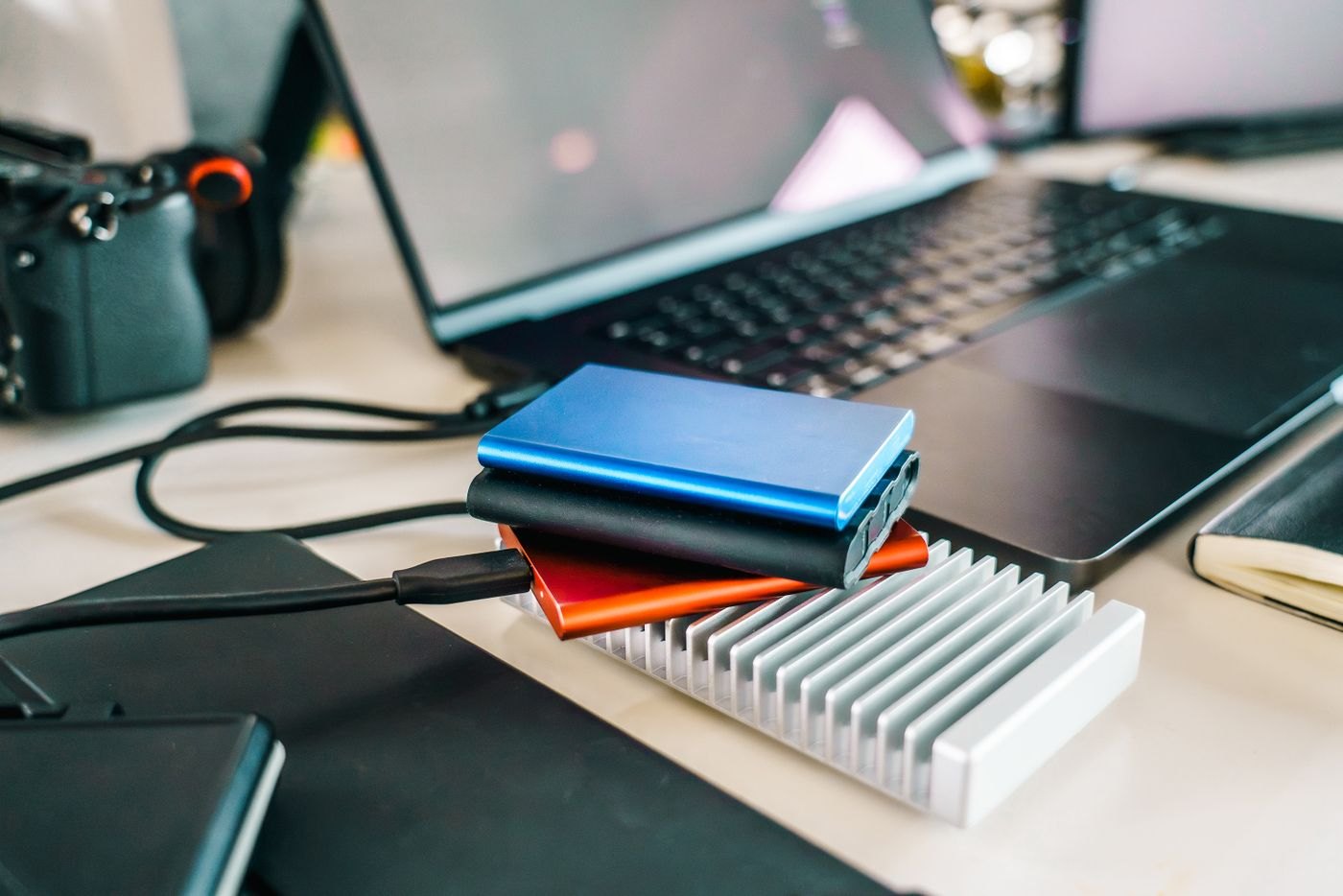
The right backup drive is the one that fits a routine you will maintain. Begin by deciding where it will live. A drive kept beside a desktop faces different demands from one packed into a bag every day. Also decide whether you need a portable unit powered through its data connection or a larger desktop model with a separate power supply. Neither arrangement is automatically convenient in every room.
Estimate the collection, not just today's folder
Measure the files you intend to protect, then find out how your backup software retains older versions. A backup with history may need substantially more space than a single copy of the latest files. The correct allowance depends on how frequently your files change and how long you keep versions, so avoid choosing capacity from a universal multiplier alone.
Compare actual purchase prices at the capacities that meet that requirement. Hard drives and SSDs can differ considerably in price, dimensions and transfer behaviour. Do not compare a small SSD with a much larger hard drive and conclude that one technology is simply better value. Include any necessary adapter, enclosure or power equipment in the total.
For a weekly backup that runs while you do something else, a shorter copy time may be less valuable than sufficient space for history. For a portable workflow with a narrow opportunity to connect the drive, waiting time may affect whether you complete the job at all. That is a reason to test a representative backup within the return period, rather than relying entirely on a speed label.
Work through one restore before committing
Choose a nonessential test document and make a backup using the intended software. Change the document, then find out how to recover its earlier version into a different folder. Check that you can identify the right backup date and open the restored file. Knowing where a restore button lives is more useful than assuming that a successful-looking progress bar guarantees a usable copy.
Keep the backup drive's role clear. If you move original files onto it to free space on the computer, those files are no longer backed up merely because of the drive's label. Arrange another copy for them. A drive's technology does not compensate for missing files, a forgotten password or a process that nobody in the household can repeat.
A desk backup and a travelling backup need different compromises
For a desktop that stays in one room, identify where the drive and any power supply can remain connected without being knocked or covered. The first full backup may take longer than later updates, so plan a period when the computer can finish it. If you judge the entire arrangement from that first job alone, you may overvalue a speed improvement that matters less during the normal routine.
For a drive that travels between home and another location, consider the complete packed kit and where a separate copy remains. An SSD's compact dimensions may be convenient, but a small enclosure is also easy to leave behind. A larger drive with a dedicated place can be easier to account for. Neither observation establishes reliability; they describe whether the physical routine is likely to be followed.
If two household computers share one backup device, check whether the chosen software supports that arrangement and how space is allocated. Do not let one person's expanding archive silently consume room needed for another person's version history. Record whose data belongs where and who will notice a failed job. Sharing the hardware does not remove the need for separate, understandable recovery procedures.