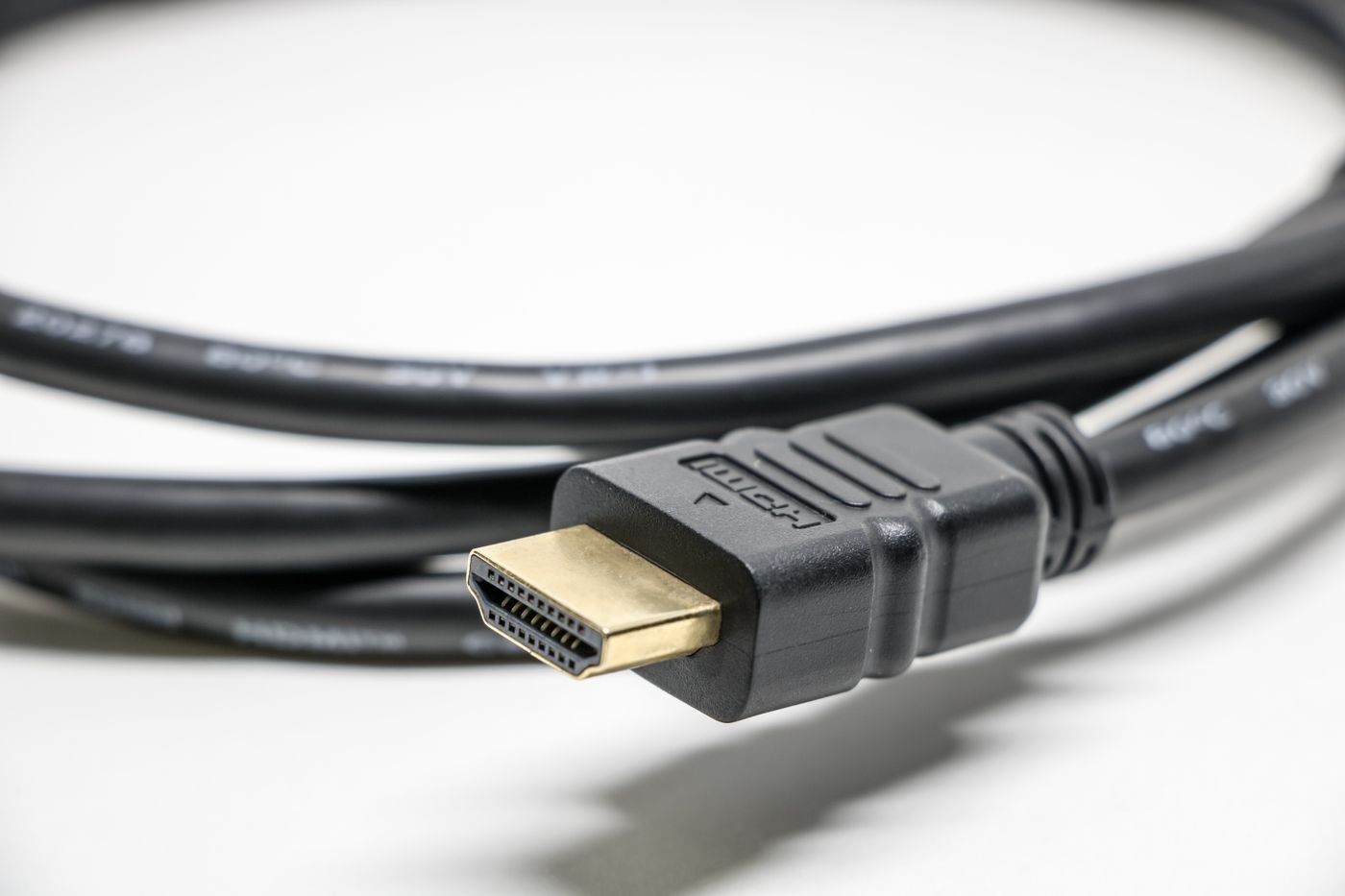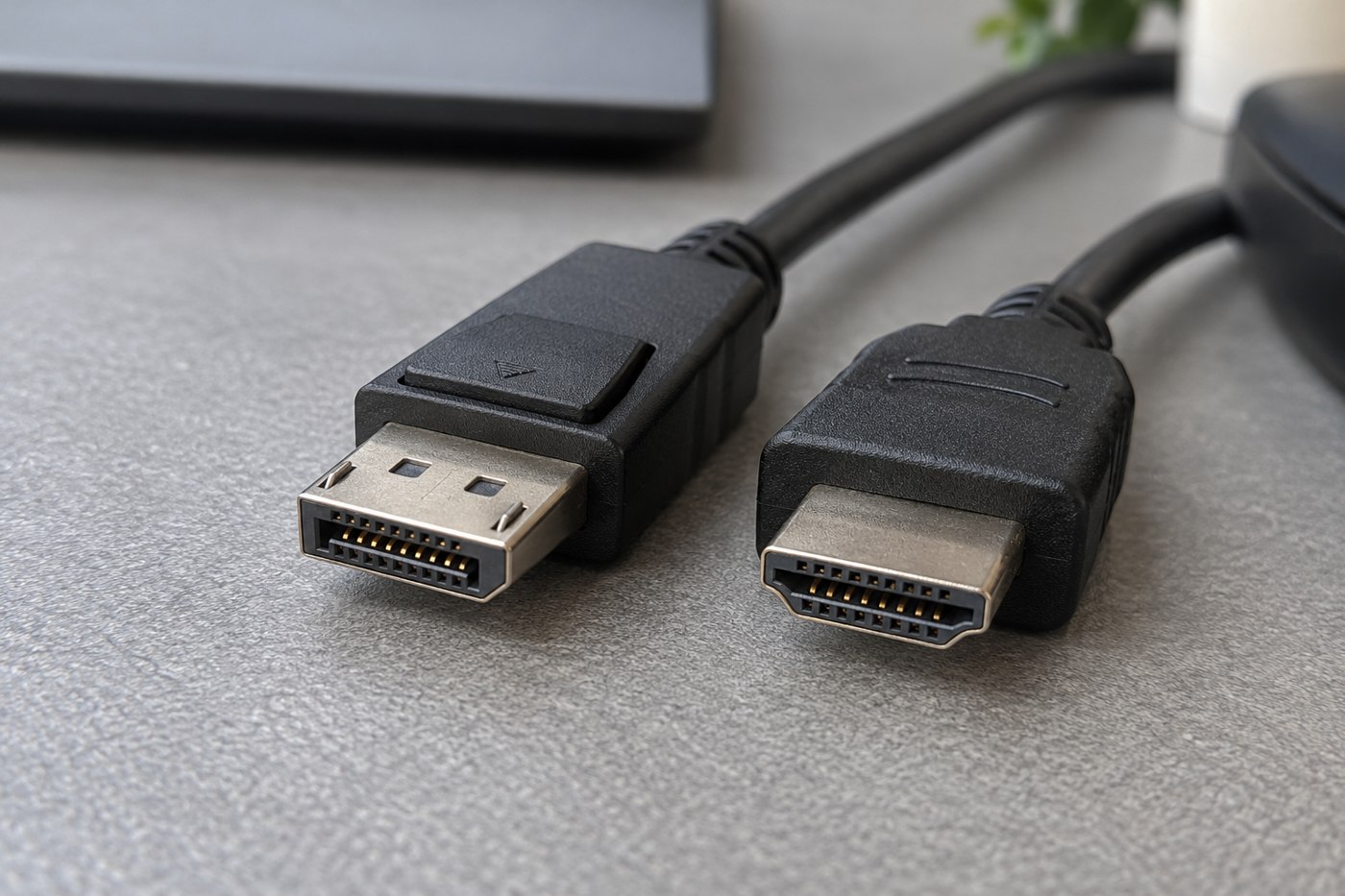
HDMI and DisplayPort are often compared as if one must be the correct choice for every desk. A more useful question is which supported connection gives your particular source and display the mode you need. Start with the manuals for both devices and the actual ports available.
List the resolution, refresh rate and any other feature that matters to your task. Then read which input and output support that combination. A specification for one port on a monitor should not automatically be applied to another input beside it.
Prefer a documented direct route
If both devices offer a suitable matching connection, compare the available direct paths before adding conversion. An adapter may be necessary, but it introduces another specification to verify. Check the supported direction, display modes and any power requirement for the exact product.
DisplayPort's official FAQ describes connections and adapters, including DisplayPort over USB-C. That information helps explain why connector appearance and signal support need separate checks. A USB-C port should be verified for its implemented display function rather than assumed to be equivalent to every other USB-C port.
Include the equipment between the ends
A dock, switch or receiver can limit the arrangement even when the computer and display support more. Write the full chain down and identify the weakest documented link for the intended mode. Do not buy a new display cable to solve a limitation stated in a dock's manual.
Audio behaviour and input selection can also matter. Check where sound is expected to go and which display input is selected. A correctly connected screen showing no picture may require a setting change, but use the equipment instructions rather than randomly changing every option at once.
Make the choice specific
For one desk, the answer might be the direct DisplayPort route documented for the desired monitor mode. For another, HDMI may be the supported connection already available on both devices. Neither outcome establishes a universal ranking.
Test the actual arrangement before securing cables or purchasing several identical leads. Verify the active display mode and the ordinary tasks you need. Keep the model and cable information with your setup notes so a future equipment change does not turn a clear decision back into a guess based on connector shape.
Compare two supported paths on paper first
Create a row for each available direct connection. Record the source port, screen input, documented target mode and cable requirement. If one path supports the mode you need without conversion, it may be the simpler starting point. If both do, factors such as available ports, cable reach and other connected equipment can decide the arrangement without a universal winner.
Now add the dock if the laptop normally uses one. The direct computer-to-screen row and the docked row are different configurations. Check the dock's limits for the number of screens and their modes, using the exact host model where the maker provides a compatibility list. Do not copy the direct-port result into the docked row automatically.
This comparison can also show that no new cable is needed. A setting, a different supported input or removing an unnecessary converter may address the original difficulty. Conversely, it may reveal that the desired mode is outside the equipment's documented capability. Knowing that before purchase prevents a series of accessory changes that cannot supply a feature missing at an endpoint.