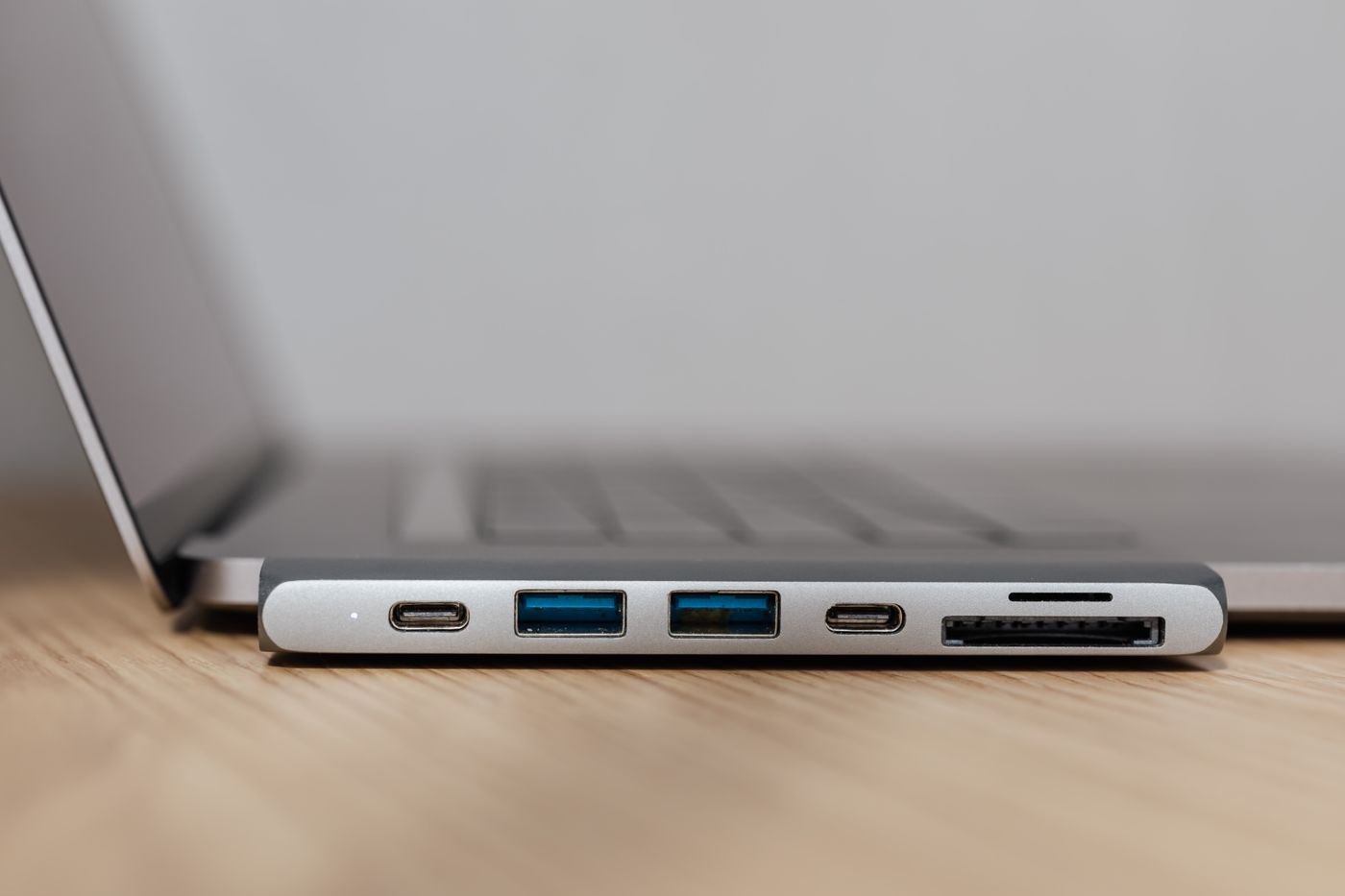
The phrase USB-C dock describes the connector you see, but not everything the dock will do with your computer. Start with the laptop's full model number and operating system. The same product family can contain different ports or graphics configurations, so a compatibility claim mentioning only a broad brand name is not enough.
Create a short list of the devices that must work simultaneously. Include each monitor's resolution and refresh rate, a webcam if you use one, storage devices, keyboard, mouse and any wired audio equipment. A dock that handles every item separately may have different limits when several functions share the same computer connection.
Read the compatibility table before the port count
Look for the dock manufacturer's supported host requirements and display table. Establish whether it relies on a particular USB-C video capability, Thunderbolt, USB4 or additional display software. Microsoft explains that USB-C Alternate Mode accessories require an appropriate mode on the computer port. A matching plug cannot add a capability absent from that connection.
Software-based display features introduce another question: can you install the required software on this laptop? A work-managed machine may have restrictions. Ask the administrator about the exact dock and driver rather than discovering the restriction after unpacking. Also check current operating-system support on the manufacturer's page, particularly for an older dock sold at a discount.
Treat power as a separate line item
Find the laptop's documented charging requirement, the dock's power supply requirement and the power it can deliver to the computer. These can be different numbers. A dock's power adapter may supply both the dock and its attached equipment; its printed wattage is not automatically the amount available to the laptop.
If the dock accepts a charger rather than including one, identify a supported charger and cable before comparing total cost. For a dock with its own supply, measure the supply as part of the desk footprint. A tidy cable at the laptop can conceal a large block that still needs a ventilated, accessible place.
Compare two working plans
Imagine a laptop used with one display, keyboard and mouse during the week, then two displays and an external SSD at home. The first setup working proves only that first combination. For the home arrangement, write both display modes on the same line and ask whether the dock supports them together on that exact host and operating system. Check the SSD connection at the same time, rather than treating a spare socket as evidence that all features retain their maximum performance.
A useful comparison sheet gives each candidate a row for host support, simultaneous displays, power delivered to the laptop, required software and included supply. Use confirmed, unsupported or unresolved in each cell. This prevents a product with an excellent answer in one row from hiding a critical unknown in another. An unresolved requirement should become a specific question to the manufacturer, not an optimistic assumption.
Also decide which functions can remain directly connected to the laptop. If a demanding accessory has its own suitable port, you may not need every device routed through the dock. This can make troubleshooting simpler and may change which dock is sufficient. The result should reflect your actual cable tolerance: adding a second host connection is reasonable if you accept it, but it does not meet a requirement for one plug at departure.
When requesting help, provide the complete host model, operating system, both monitor models and desired modes. A photograph of the dock's front panel cannot communicate those constraints.
Test a normal working sequence
On arrival, start with the documented setup procedure. Test the monitor arrangement, an actual webcam call and a sample file transfer with the equipment connected as planned. Check keyboard and mouse operation after the laptop wakes. If one function fails, disconnect optional accessories and add them back one at a time so your support request describes a reproducible combination.
Be specific about success. Two mirrored screens do not satisfy a requirement for two extended desktops. A charging icon alone does not demonstrate that the battery will maintain its level during your usual workload. Likewise, a display producing a picture does not confirm the target refresh rate. Inspect the relevant settings and observe the task you intend to do.
Keep the host cable associated with the dock and retain the manufacturer's compatibility notes. If the dock will serve a second laptop, repeat the checks for that computer instead of transferring the first result. The useful purchase is a verified arrangement of host, dock and accessories, not the model with the greatest number of sockets.