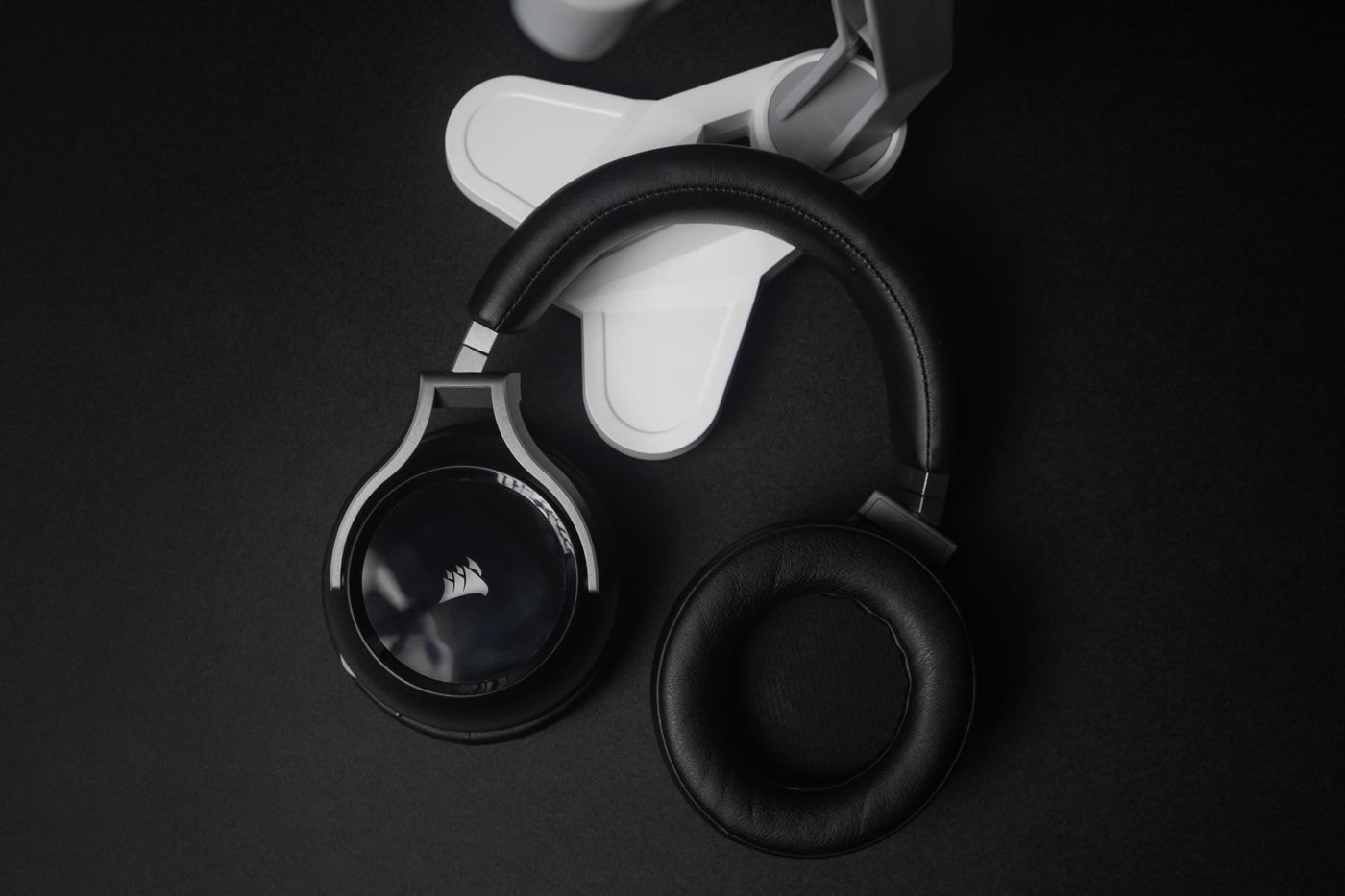
A gaming headset can be suitable for ordinary calls, but its gaming label does not establish how it connects to every computer. Identify the exact version: products with a similar name can use an analogue plug, USB, a dedicated wireless receiver or another arrangement. Start with the laptop or desktop you will use for meetings and read the headset's supported connections.
Separate the listening path from the microphone path. You may hear a meeting while the application continues to use the laptop's built-in microphone. This can go unnoticed until someone reports keyboard noise or a distant voice. Select the headset explicitly for both input and output where those are the intended paths.
Verify the connection you plan to use
For an analogue headset, match the plug arrangement to the computer's socket. A combined headset socket differs from separate headphone and microphone inputs, so any adapter must support the intended wiring. For USB or a receiver, check operating-system compatibility and whether software is needed for basic operation or only optional features.
If the headset supports several modes, read what each one carries. A charging cable may not be an audio connection, and an analogue cable may not preserve all controls or microphone functions. Do not infer the behaviour from the presence of the socket alone.
Learn what each mute control does
A headset may mute through a switch, a button or the position of its boom. Test that function in a harmless local recording and in the conferencing application. Watch the application's indicator but also listen to the result, because hardware mute and software mute need not share the same visible state in every combination.
Keep a clear recovery action: know how to unmute the hardware and where the application input selector is. If the headset has a detachable microphone, make sure it is seated as instructed. Avoid pressing every button during a live call when one control may change the connection mode.
Another useful test involves a meeting application and a media player open at the same time. Pause the media, join a test call and confirm the headset's controls affect the intended task. Some controls may be interpreted differently by different software, so learn the supported behaviour before relying on a button to end or mute a conversation.
If the headset uses a receiver, keep that receiver associated with the headset and check its supported USB connection. A receiver from a similar-looking model is not automatically interchangeable. For travel, identify whether basic call operation depends on carrying it or whether another documented mode is available.
Record these details in the same place as the headset model and firmware instructions. This makes replacing a computer or rebuilding the desk less likely to introduce a connection that plays audio but silently loses the microphone or call controls.
Compare the voice with ordinary settings
Make a short recording with the microphone in its documented position. Include normal speech, a pause and a little typing. Listen for whether the voice remains clear when you glance at notes. Start with a simple configuration before enabling several processing effects at once.
A hypothetical problem illustrates the value of this sequence: music plays correctly, but colleagues hear a distant voice. Buying a new headset would be premature. First check whether the meeting is still using the webcam microphone, then verify the headset's hardware mute and application permissions. If the local recording works through the headset but the meeting does not, focus on the meeting configuration.
Finally, assess comfort and controls over the length of your usual call. A bulky boom or conspicuous lighting may be a personal preference, while accessible mute and predictable reconnection are functional requirements. Test after sleep and after using another audio application. A headset earns its place in the meeting setup through those ordinary behaviours, not through features designed for a game you are not playing.