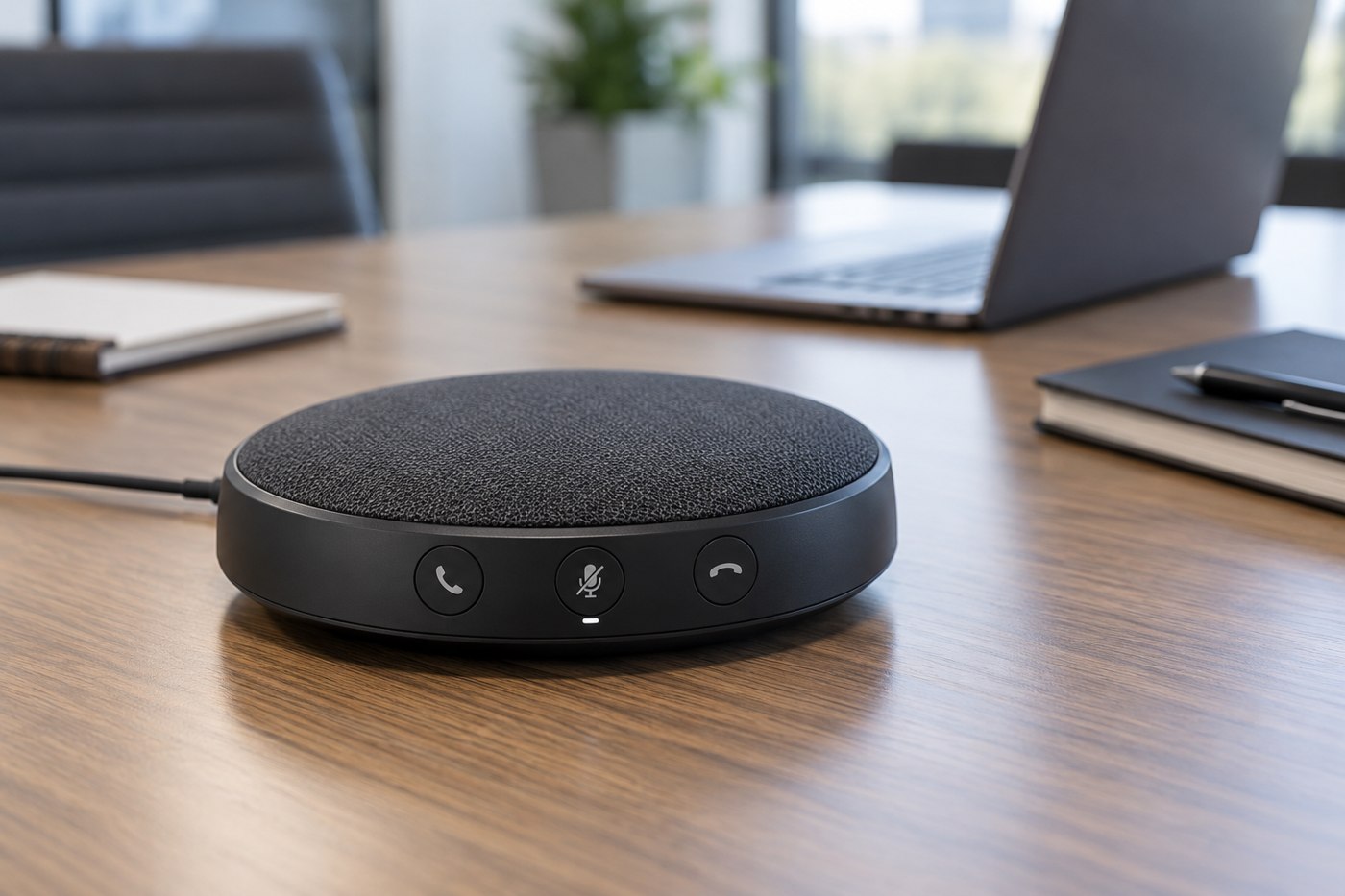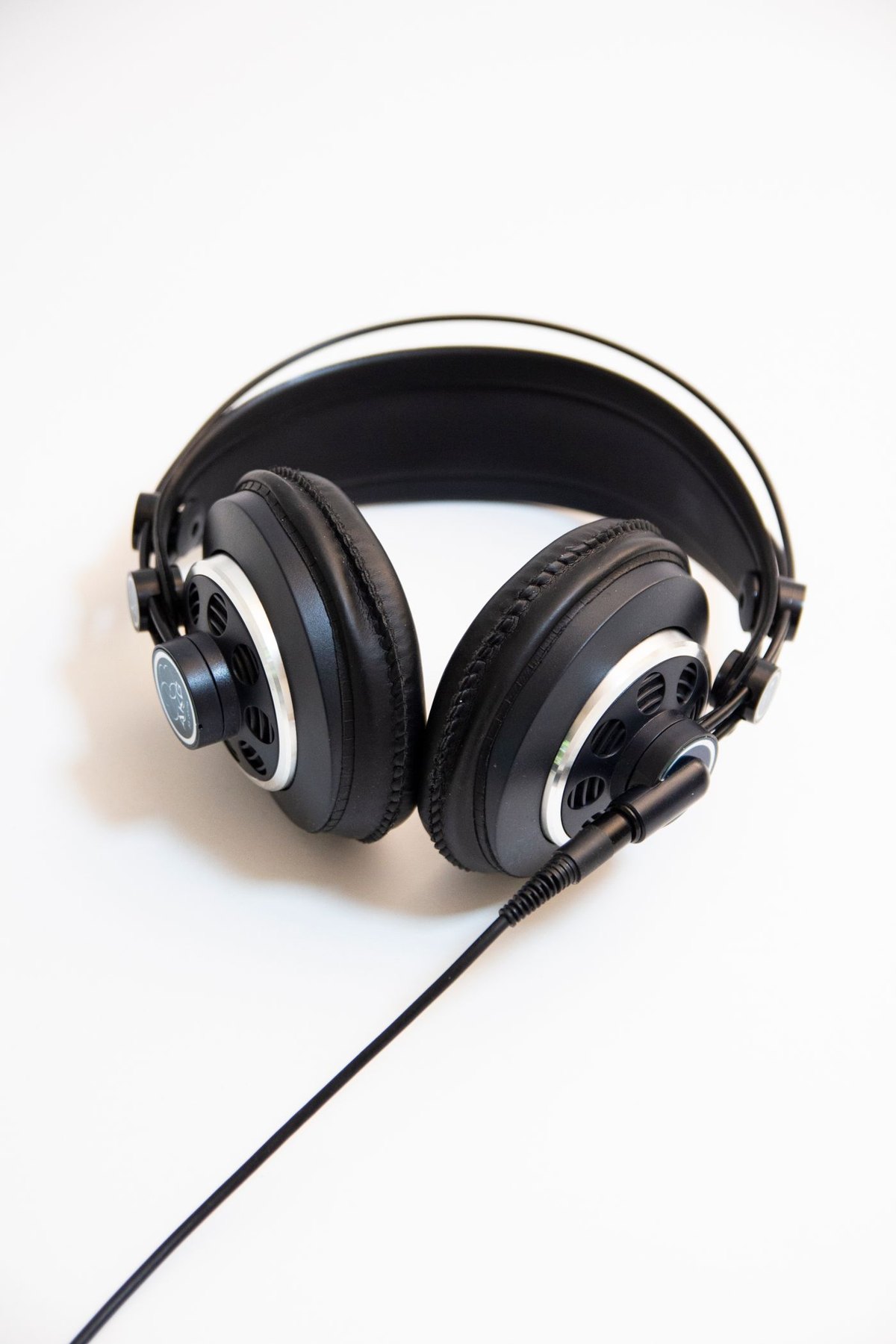
When a microphone stops working in one application, the hardware is only one possible cause. Begin by describing the symptom precisely: no device listed, no meter movement, a moving meter but no recording, or sound that another person cannot hear. Those are different points in the signal path.
Check the physical mute control and the intended connection first. Make sure you are using the microphone's speaking side and a cable intended for its data or audio connection. If the device has an indicator, use the manual to interpret it; a power light does not necessarily mean the application is receiving audio.
Find the first place the signal disappears
Inspect the operating system's input selection and level display. Choose the device by its actual name rather than leaving an ambiguous default when several microphones are connected. A webcam, headset and laptop may each offer a separate input.
Microsoft's privacy documentation explains that camera and microphone access can involve system, application and browser permissions. Check the relevant layer for the program you are using. Do not grant every application access as a general troubleshooting shortcut; enable the intended use and test it.
If the system sees a signal, open a simple recording application and make a short non-sensitive sample. Play the saved file back through a known output. This separates a device or system issue from a problem limited to a meeting application.
Inspect the application's own selection
Choose the microphone inside the application, including a browser-based meeting if that is your workflow. Confirm that the meeting itself is not muted. Check whether another open program is using the device in a way that affects access, following the software's guidance rather than repeatedly reconnecting hardware during a live call.
For sound that is present but poor, temporarily simplify optional processing and compare one change at a time. Record the original setting before changing it. Multiple automatic adjustments can make it hard to identify which change helped.
Use a small fault table
You can narrow a fault with three observations recorded on paper: whether the system lists the microphone, whether a local sample contains sound, and whether the target application receives it. If the device is not listed, concentrate on the supported connection and device setup. If a local sample works but the meeting does not, concentrate on application selection and access. This keeps the next step tied to evidence.
For a microphone connected through a hub, a direct supported connection to the computer can be a useful comparison. If direct operation works, note the hub model, port and other attached devices rather than assuming the microphone itself is defective. Reconnect only the necessary equipment and test again according to the manufacturers' instructions.
If the fault begins after sleep, record that trigger. Test a fresh application launch after waking and compare with the initial startup. A reproducible sequence such as works after restart, fails after sleep is more useful to support than an intermittent description with no conditions.
Keep test recordings non-sensitive and short. You do not need to capture an actual business meeting to demonstrate a microphone problem. A few ordinary sentences and the settings used provide enough evidence for many first-line checks.
Once a working route is restored, stop changing unrelated settings. Save the device selections and the specific change that helped so the same symptom can be recognized later.
Give support a reproducible result
If the problem remains, note the microphone model, operating system, connection, affected application and the results of the local recording test. Include whether the failure occurs after sleep, only through a hub, or only with one program. That information is much more useful than saying the microphone is broken.
Avoid factory resets or driver removal as the first move. Follow the manufacturer's documented procedure if those steps become appropriate, and understand what settings will be lost. A structured check often narrows the problem without replacing a functioning microphone.