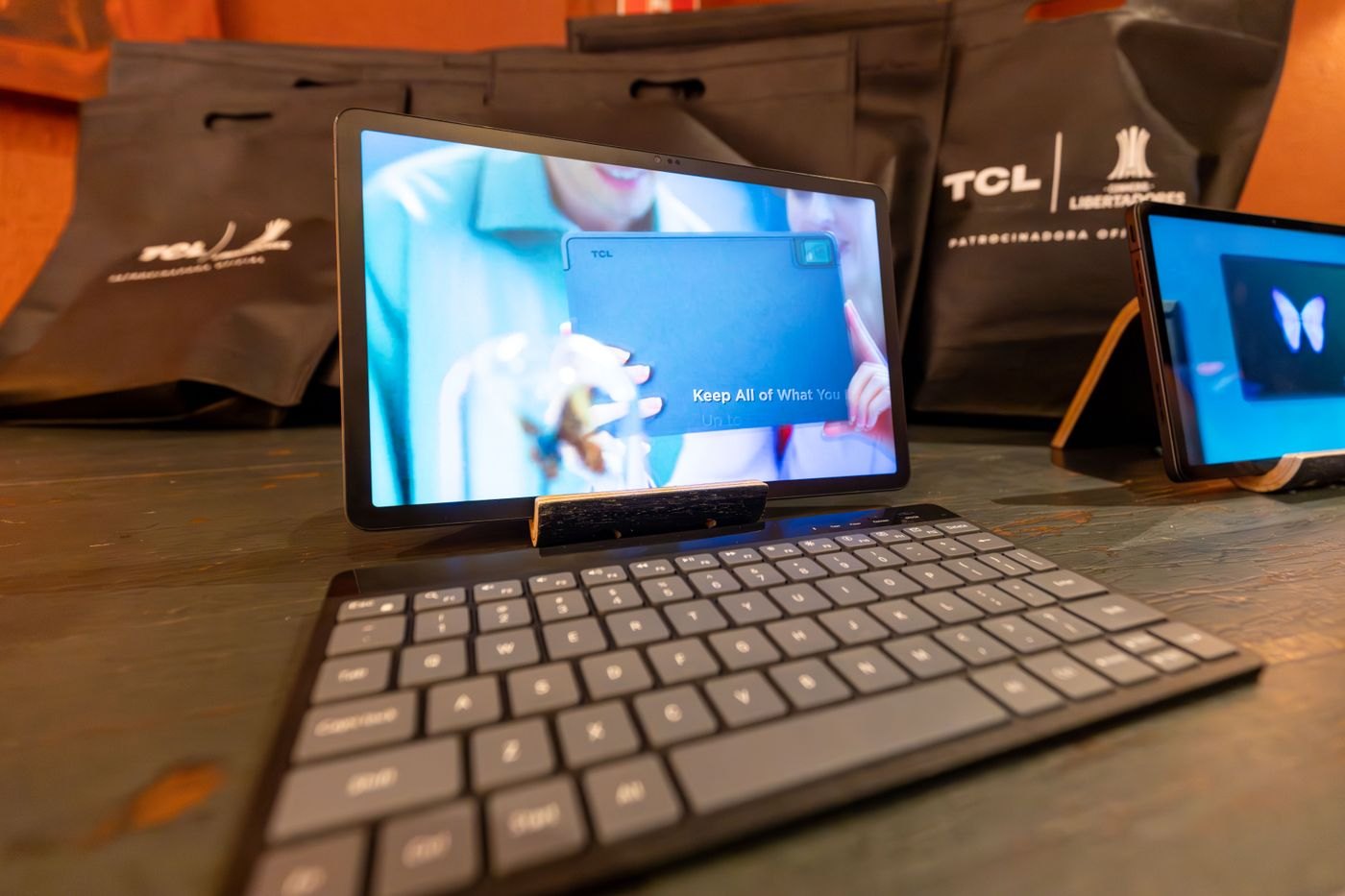
A tablet can hold the presentation, but the room determines how it reaches the audience. Ask what display or projector input will be available and whether you are expected to provide an adapter. Identify the tablet model and use its manufacturer's supported display-connection instructions before choosing a cable.
Apple's iPad documentation, for example, describes model-dependent connections to external displays. Treat those instructions as specific to the relevant device. A matching connector on another tablet does not guarantee the same output or presentation behaviour.
Rehearse the material rather than a blank slide
Open the actual file and run through the sequence you intend to show. Include embedded video, sound, diagrams and any transition that matters. Check the font and layout after transferring the file to the tablet; a title slide alone cannot reveal every compatibility problem.
Confirm what appears on the external screen and what remains on the tablet. Do not assume private notes or controls are hidden. Review notification settings and close unrelated material before the session using the device's available controls.
If you will advance slides remotely, test the controller with the presentation application. Keep the ordinary touch controls usable as a fallback. A successful remote connection in another application does not establish the command you need here.
Plan power and arrival time
Check whether the display arrangement leaves a supported way to power the tablet during a long session. Include the required charger and cable, not just the display adapter. Lay out the complete chain once so a missing connector is discovered at home.
Ask for time to test the room equipment before the audience arrives. The destination may use a different input or setting from your practice setup. Keep the venue contact information and clarify who can help with the display rather than assuming every room has technical staff present.
Carry an alternative that someone else can open
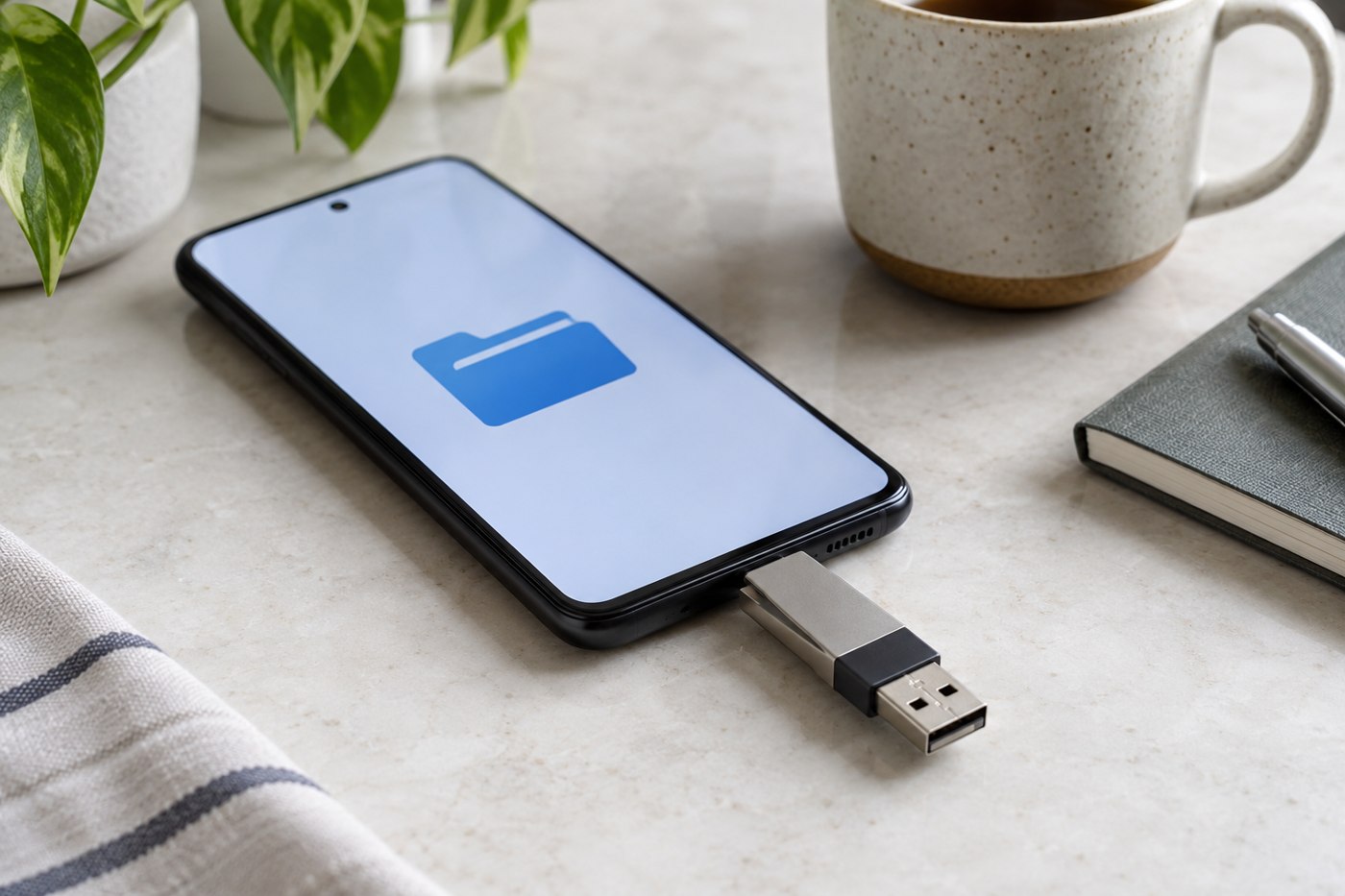
Prepare an appropriate exported copy on a second medium or through an agreed delivery method. Verify that it opens and note any features it does not preserve. A static PDF may be useful for some presentations while being insufficient for one built around video; choose the fallback for the content.
The purpose of the backup is continuity, not duplicating every piece of equipment. Know which parts of the talk can proceed if the preferred display arrangement is unavailable. That decision is easier before the session than while an audience watches you search for an adapter.
Rehearse a changed-room scenario
Imagine arriving to find that the room has a different display input from the one described. Your preparation should make the next decision clear: contact the venue representative, use a verified alternative connection if one is available, or switch to the agreed fallback file on the venue computer. It should not require guessing which way an unfamiliar converter operates while the presentation is due to start.
Put the file and its supporting media in an organized folder. If the presentation depends on a linked video or another external file, verify how the application includes or locates it. Test after moving the folder to the destination device, because a presentation that works on the original computer may be referencing material that was never copied.
Keep the speaking sequence understandable if one media element fails. You can note the point the video was intended to illustrate and decide whether a still image or explanation would be sufficient. This is content preparation as well as device preparation. A smaller, verified set of materials often makes recovery easier than several slightly different versions whose filenames do not reveal which one is final.